


 An organization usually starts “small” and works its way through the more complex functions of Microsoft Project Professional and Project Server. Creating a resource and a Resource Pool are important first steps in using resource management. Creating a standard calendar is another important step to having consistent working times. A third step is to customize a resource’s calendar to match his or her specific schedule.
Once a resource is assigned to a calendar, whether a standard or customized one, you can adjust the working times for that resource. This allows for better information and more realistic scheduling for the resource. Following the philosophy of starting small, we don’t recommend trying to enter every possible event that is an exception to the resource’s normal working times. For example, if a resource is taking a two-week vacation, it would be good to enter that into their calendar. However, if they are leaving work a half hour early tomorrow, you shouldn’t worry about trying to get that into their calendar.
The goal of resource management is to accurately predict working times, availability, scheduling, and other factors. It is up to you and your organizational structure to determine the depth and level of detail that you want to use to manage those items. Updating a resource’s calendar for a two-week vacation is probably more important than trying to modify their calendar for the “timetable of life.” If a resource is out of the office for two straight weeks, that could significantly affect one or more schedules, but if he or she has to leave a little early one day, there may be a plan to make that time up, so any adjustments to calendars would only be extra administrative work.
The authors have worked with clients who have certain schedules that are literally designed to report down to the minute. In those situations, and for the resources assigned to those schedules, it may be very important to account for every minute of their time. This is an example to illustrate that you should plan to manage resource calendars to the depth and level of detail that your organization needs.
Changing Working Time for One Resource
Once you have all of your organization’s enterprise resources set up, you can begin to update their individual resource calendars. There are some important things to understand about calendars before we just jump in here. Microsoft Project has three types of calendars: task calendars, resource calendars, and project calendars. In this case, we will adjust the working time in the resource calendar for a specific resource. Therefore, it is important to note that we are modifying the working time for the resource only and not for everybody assigned to this specific resource calendar.
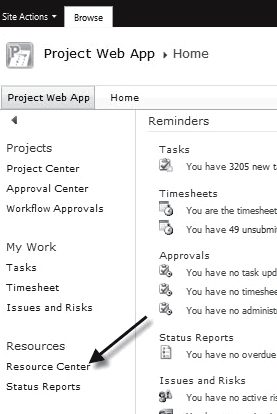
We will walk through this process step-by-step. This is one case where the Project Server and Project Professional stand-alone versions overlap, so we won’t need to demonstrate this example in two separate ways. The Project Server method involves a few more steps than directly changing the working time in the stand-alone version. For Project Server, shown in Figure 1, you need to go to a Project Web App (PWA) site and click on Resource Center on the left-hand side of the page.
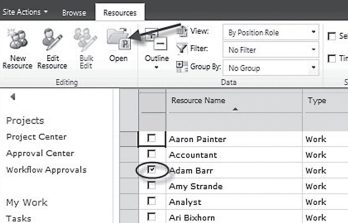
The Resource Center in Microsoft Project Server is now open. Since we are adjusting an existing resource, we are going to take a resource that’s already been created, and then modify the working time for this resource’s resource calendar. First, you need to click in the check box next to the resource name. As shown in Figure 2, we have selected the resource Adam Barr. You can select more than one resource at a time to open in the Enterprise Resource Global file by selecting more than one check box. Once you have the resource(s) selected, click on the Open icon near the top left of the default resources tab on the Resource Center screen. This will open Microsoft Project Professional and the Enterprise Resource Global file.
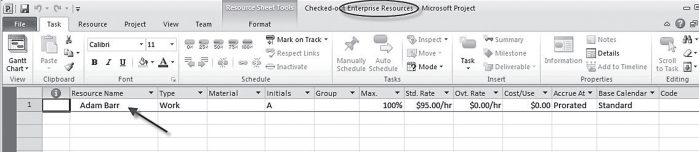
As shown in Figure 3, the Enterprise Resource sheet in Microsoft Project Professional looks just like the regular resource sheet except it clearly states enterprise resources at the top of the screen. In order to get to the resource calendar, find the name of the resource whose calendar you want to modify and simply double click on their name. This will open the Resource Information box.
It is at this point where the stand-alone and Server versions are similar. In the stand-alone version, you will need to select your resource from the Resource Pool directly. However, once you have selected the resource and double clicked on the name, the Resource Information box will open. As shown in Figure 4, this box looks the same whether in the Server or stand-alone version.
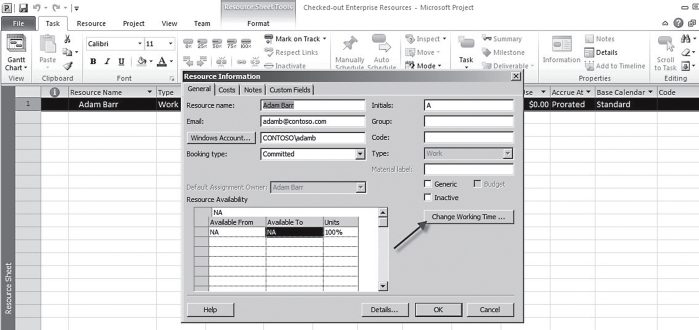
The Resource Information box contains several pieces of information. This is the information that was completed when the resource was set up. The main thing to look for at this time is the Change Working Time button. Once you click on that button, the Change Working Time box appears.
The Change Working Time box is where you will actually change the working time for the particular resource. Let’s say that Adam is going to be on vacation the first full week in July. In order to denote that on Adam’s calendar, you need to get to July. It is important to make sure that you are in the correct month since the box may open to a different date than you expect. There are two common methods to get to the correct date. You could simply either scroll up or down using the arrows, or type in the dates, using the Start and Finish columns. Both of these options are shown in Figure 5.
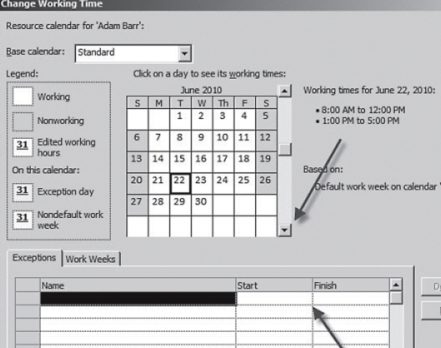
You can select consecutive days by holding down the Shift key and highlighting the dates, or you can go to the Start and Finish columns and click on dates from the drop-down calendars. Once the dates are selected, or if you are going to type in the dates, you must give it an applicable description. As you can see in Figure 6, we’ve titled Adam’s week off as Vacation.
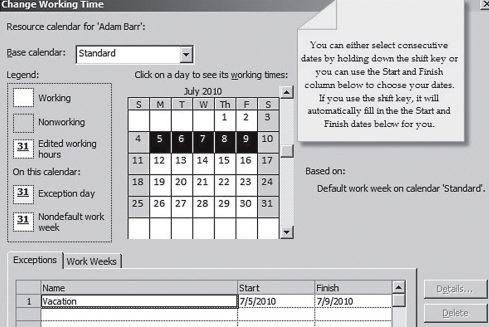
Once you have modified the dates in the Change Working Time box, the days you set up in the vacation week are noted as being “nonworking” days. This is shown in Figure 7 on the right side of the box. Also, the dates are highlighted visually in the calendar to show that an exception has been made. The lower right hand side of the box states the exception that we called “Vacation” is now on the calendar for Adam.
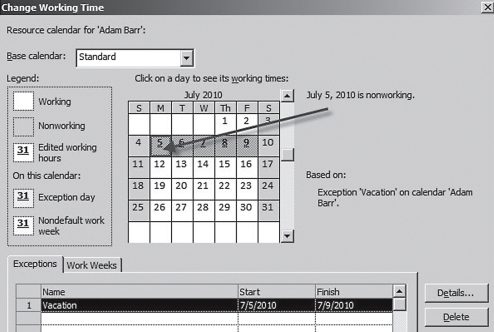
Again, it is important to note that we are adjusting the calendar only for Adam Barr and not the entire calendar for everybody. If you look in the Change Working Time box, you will see that it states the information in the Standard calendar on the top of the screen, but just above that it also states that it is in the resource calendar for Adam.
You could do this exact same scenario for only one day off. If Adam knows he’s going to be gone for his son’s birthday, then you can mark that off on his resource calendar.
You can also change working time, not just days. Let’s say Adam had a week where he was only working four hours per day for that entire week. We could enter that on the calendar as well.
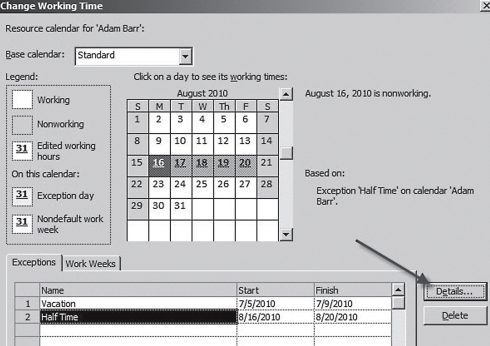
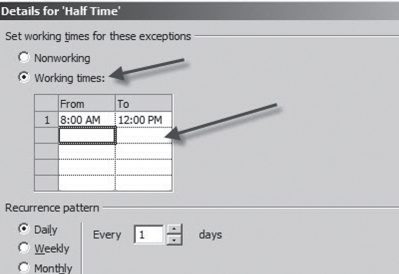
For this example, we selected the week of August 16th and called the Exception “Half Time.” Adam is only going to work half time, or four hours, each day that week. Since we’ve typed in our exception name and selected the days, now all you need to do is to indicate to the system that Adam’s hours are only going to be four hours per day. To do this, click on the Details button, as shown in Figure 8.
Clicking on the Details button brings up the Exceptions Details box. As demonstrated in Figure 9, select the Working Times option. After selecting this option, delete the 1:00 PM to 5:00 PM entry in the Times area (this will probably be line 2). This will change Adam’s working times for that week from 8:00 AM to 12:00 PM. In the bottom of the box, in the Range of Recurrence section, you can see the range starts on 8/16 and ends after five occurrences. This automatically filled in once the dates were selected in the other screen. Click on the OK button to go back to the Change Working Time box.
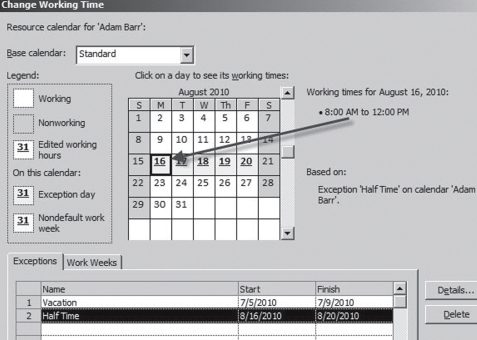
Just as when we modified the calendar for vacation time, we can now see that Adam’s working times for those particular days are highlighted as an exception, as shown in Figure 10.
After clicking on OK from the Change Working Time box, you will be back to the Resource sheet. When you’re finished in the Enterprise Resource sheet, it’s very important to Save and Close the sheet. This is where the stand-alone and Server versions differ. For the stand-alone version, when you have saved the Resource Pool and closed the project, you are done.
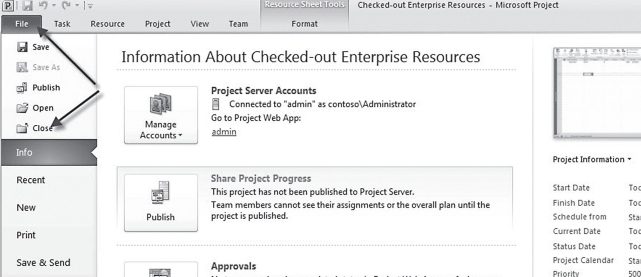
For the Server version, you need to Save, Close, and check back in the resources that you have checked out. As shown in Figure 11, you will need to click on File at the top left corner of the screen in Project Professional, and then choose Close.
To have the best information about resources, their availability, and how that affects your schedules requires a minimal amount of setup. The level of setup required is determined by the amount of information and the level of detail about that information that your organization desires. It is recommended to start out with less information and work your way up to having more details over time. By starting with a Resource Pool and then adding a standard calendar for your organization you begin to gain some understanding of your resource capacity and utilization.
Once a standard calendar is built, one or more calendars that better matches the working hours of groups of resources can be built to give even more clarity concerning your resource’s capacity and utilization. Then, over time, your organization can begin to add individual resource information to those calendars to even further define specific capacity and utilization. Along with giving more information about resources and their working times, your organization can also gain valuable information that will affect the timing of your project file.
This article is excerpted from Mastering Resource Management Using Microsoft Project and Project Server 2010 by Collin Quiring and Tanya Foster, published by J. Ross Publishing. Reprinted with kind permission from the publisher.



Collin Quiring
Hi Ashish,
I am in agreement with your issue of flipping the calendar back and forth and that by doing so you lose out on historical information. There is no way to track backwards as to which calendar was in effect at the time.
I am wondering about a couple potential solutions. What if you have two Resource Names for this resource – one onshore and one offshore? That would make for some need to combine information in the reporting side. But, that would eliminate the need for switching the calendar.
A different workaround might be to leave the resource with one calendar but put the onshore and offshore calendar on the task instead and ignore the resource calendar. This works great if there are different schedules or different tasks for the onshore and offshore tasks.
As for the Max unites. I guess that would work as well and yes, you can report on it from the database. To properly report on it you would have to keep the Max Units and From/To dates in the Resource information and not ever remove it. Depending on how many times you are flipping between unit levels, that might become quite cumbersome.
Let me know if either of the calendar ideas might work for you!
Thanks,
Collin
Collin
Hi Sam,
After some review, this looks like something you can only do from the Published Database for a report or with a PSI (or Jsom) call. There does not appear to be an ability to get this information from the Reporting database directly.
Thanks,
Collin