
Some projects are just disruptive. This is especially the case when you are replacing an old technology with a new one. There usually isn’t a “good” time to move from one enterprise solution to another, so many IT project teams schedule the transition over a weekend. Bad for the people doing the work, but better than shutting everyone down for two days in the middle of the work week. The challenge is to designate the cutover Saturday and Sunday as working days for the tasks of interest, while ensuring that other tasks aren’t shifted in time. The solution is a custom calendar, applied to only the intended tasks. The following article will show you how to do just that.
Creating a Custom Calendar
Begin by navigating to the View tab in Microsoft Project. Click on Change Working Time, then click on the button labeled Create New Calendar.

We have already entered our organization’s holidays as exceptions to the Standard calendar, so let’s make a copy of it. We can rename it Cutover Weekend. Click OK.

Next, we can add two more exception days. To do this, scroll to the bottom of the exception list, and enter the planned exceptions. Then click OK. For each newly entered exception day, click on the Details button.
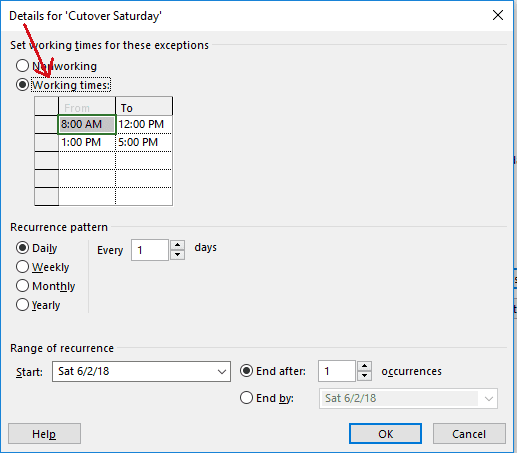
Change the radio button to Working times. The default working hours for the project will appear. To accept these changes, click OK.
Assigning the Cutover Calendar to Selected Tasks
Now that we have a separate calendar that makes cutover weekend working days, let’s assign it to the cutover tasks. Right-click on the task and select Information. Then navigate to the Advanced tab.

Click on the pull-down list in the Calendar field and select the new custom calendar, Cutover Weekend. Then click on the check box, Scheduling ignores resource calendars. Click OK.

Now if the Schedule Mode is set to Auto Scheduled for the task, the dates will recalculate to reflect the weekend days.
Other Applications
As you can see, assigning a custom calendar in this way isolates the effect to just the tasks to which the calendar applies. In addition to this example, you can also apply the same approach to situations where a portion of the project team will be unavailable during the normal work week. One potential application would be for when certain members of the team will be occupied in other activities, such as financial year-end processing.

Note that we’ve created yet another custom calendar. In this case, we’ve set May 14 through May 25 as a single exception, all non-working days. Now we can assign the calendar to a Resource. To do this, bring up the Resource Sheet view, right-click on the resource affected, and select Resource information.

Now click on Change Working Time.

In the Base Calendar field, select the new Year End Processing calendar from the pull-down list. Click OK. When you return to the Resource Information window, click OK again.
Now, tasks assigned to this resource will be scheduled with all identified non-working days accounted for, including both the base holidays and the year-end processing period. This approach is especially valuable for situations where several members of the team will be affected by an external event. If you only have one team member impacted, you could also enter exceptions in the Resource’s Change Working Time screen, as you did in the Project Calendar.
In Closing
These simple techniques will allow you to create and maintain your project schedule around your team’s availability. An important reminder: keep track of your custom calendars—they need maintenance, especially if you reschedule your cutover!
Related Content
Webinars (watch for free now!):
Task Planning using Microsoft Project
What’s the value of Schedule Risk Analysis?
Articles:
Levels of Project Scheduling Proficiency
Are You Using the Team Planner View Feature in Microsoft Project?
Resource Leveling: Scheduling vs. Leveling
