
An Introduction
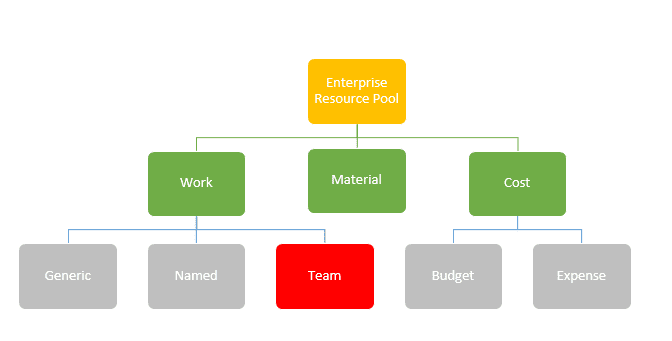
Project’s Web App allows one to define three types of resources: Work, Material, and Cost. Work resources are equipment and people needed to perform tasks on a project. Work resources may be further classified as Generic, Named, and Team.
- Generic resources are placeholders for work resource roles such as designer, developer, architect, etc.
- Named resources are common resource types. These represent real people or equipment needed to perform the work.
- You might be wondering, why the third category, called “Team” resource. Read on and find out …
Why Should I Use Team Resources?
Generic and named resources cannot meet the following scenario’s requirements:
- If you do not want to assign the task to one work resource and rather want to assign it to pool of resources, such that team members can self-assign themselves to those tasks.
- If you want to see the demand and supply for a team, so that you can take decisions to hire and/or optimize the team size.
How Do I Configure Team Resources and Assign Them to Tasks?
Ben Howard has written detailed article about team resources (click here to read). In short, he provides three steps, which I have summarized below:
- Create a lookup table and associate it with Team Name, the Enterprise custom field.
- Create a generic team resource with booking type as committed, team assignment pool checked, and appropriate team name selected in Team Name: field.
- Create named work resources with booking type as committed, team assignment pool unchecked, and appropriate team name selected in Team Name: field.
Should Team Resource be a Generic Resource?
Preferably, yes. Generic resource capacity will be zero and it is easy to see the demand and supply of the team. Yet, having a true work resource as a team resource would enable you to set an assignment owner who can track team assignments.
How Will the Team Member Self-Assign Themselves to the Team Tasks?
On the Tasks page, a team member selects the “Add Team Task” option under Add rows. This page will display all of the team tasks of the team he/she is part of. Note: if Single Entry Mode is disabled (PWA Setting > Timesheet Settings and Defaults), the team member will not notice the “Add Team Task” option on the Timesheet page, as team tasks re-assignment is a task feature rather than a timesheet feature.

Should Someone Approve Self-Assigned Team Tasks?
The status manager, who is most often the project manager, approves these requests. On the Quick Launch Approvals page, the status manager can accept or reject the re-assignment.

One can also automatically approve these re-assignment requests by creating rules. On the Quick Launch under Approvals, click Manage Rules, and then New. After giving a name and description, select “Automatically run this rule” and “All task reassignment requests.” If you want the updates to the automatically published, select “Automatically publish the updates.”
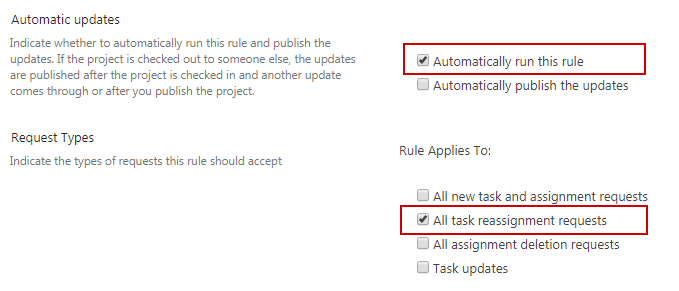
If you want this rule to be applied only from team resources, under the “Rule Accepts Requests From These Resources:” section, move the team resources to Selected Resources: group.

“WINNER TAKES IT ALL”
Typically when the first member of the team takes an assignment, the team task is re-assigned to that team member and no other team members are even aware of the team task having existed. For long running tasks, you might want the team task to always be in the team assignment pool (in the case that new resources are being added to the team). To change the default behavior go to PWA Settings > Task Settings and Display, and select the checkbox “Allow team tasks to be assigned to the team assignment pool and multiple team members.”

If you have selected “Allow team tasks to be assigned to the team assignment pool and multiple team members,” all team members can still add to the team tasks, even if sufficient resources have been assigned. A good practice to adopt is to remove the team resources from the task when the team task is properly resourced.
Watch my on-demand webinar on this topic to learn more. At the end of the session, you will be able to assign tasks to team resources rather than individual resources, see demand versus capacity for a team, and as we discussed here, allow team members to self-assign themselves to tasks in Project Online.
