Back to ArticlesBack

Join 500,000+ PM Professionals

Get expert PM insights, PMP prep tips, and earn PDUs with exclusive content delivered weekly.

MPUG

In this article you’ll learn how to create an amazing report with the new Microsoft Power BI Gantt Custom Visual. A Gantt chart is a kind of bar chart that shows a project timeline or schedule. As Microsoft notes in its Power BI gallery listing for the Gantt chart, the visual you’ll be working with here “shows the Tasks, Start Dates, Durations, % Complete, and Resources for a project. The Gantt Chart visual can be used to show current schedule status using percent-complete shadings and a vertical “TODAY” line. The Legend may be used to group or filter tasks based upon data values.”

Let’s get started.


Allan Rocha also presented a webinar for MPUG members on how to report your Project Online resource engagements data using Power BI custom visuals.


First, make sure you’re working with the latest version of Power BI Desktop. (If you’re using the cloud version of Power BI), you already know you have the latest edition. Next, download the Power BI Custom Visual Gantt. The gallery is a collection of interactive reports created by Microsoft folks and others in the Power BI community who have donated their efforts to the roster.

Picture of the download Power BI download interface

Under visualizations, click on Import.
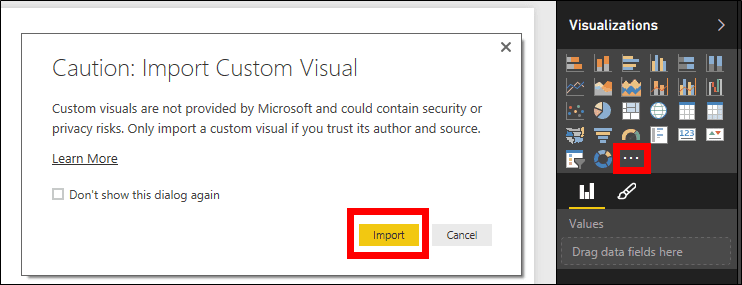
How to import custom visual

Select the Gantt.pbiviz file.

Selecting the Gantt download file

Box showing visual was successfully imported

Click on the Gantt icon, under visualizations, to add the visual and look at the fields available for this chart (Legend, Task, Start Date, etc.).

the visual and look at the fields available for this chart

MPUG Logo

Learn how an MPUG Membership helps individuals and teams become better project managers and Microsoft Project users through Microsoft Project Training.

Join MPUG to attend live training webinars, access 500+ hours of on-demand sessions, receive certificates of completion and earn the Project Management Institute (PMI)® Professional Development Units (PDUs) that you need. Watch an MPUG training webinar for free and improve your Microsoft Project skills in less than 1 hour.


For the chart we’re creating, I’m using the following tables:

  • Assignments;
  • Resources; and
  • Tasks.

We’ll place the fields in the following order:

  • Legend: Role (Resource)
  • Task: TaskName (Assignments)
  • Start
  • Date: AssignmentStartDate (Assignments)
  • Duration: TaskDuration (Tasks)
  • %
  • Completion: TaskPercentWorkCompleted (Tasks)
  • Resource: ResourceName (Resources)
Toolbar in Power BI

Add some extra charts and slicers (an alternate way to do filtering that narrows the portion of the dataset shown in the other visualizations on the page).

And you’re done! You have now a Power BI Gantt chart ready to use!

Power BI Gantt Interface

Let’s publish it to Power BI by clicking on Publish.

Publishing your <a href=gantt chart” class=”wp-image-395909″ width=”300″ height=”52″/>

Succesfully Published Gantt chart message

To access your Power BI report, remember to enable custom visuals.

Enabling Custom Visuals

Allan_Rocha_Gantt_chart_in_PowerBI_figure_11

Enjoy the quick GIF below to see how cool your work is in real life!

Allan_Rocha_Gantt_chart_in_PowerBI_figure_12

A version of this article first appeared on Allan Rocha’s blog, ppm4all.

Is there a particular Power BI custom visual you like to use? Let the MPUG community know in comments below!


Related Content

Webinars (watch for free now!):
Back to the Future – When Gantt has Style

Articles:
Storytelling with Your Gantt Chart


Get Weekly PM Insights

Join 500,000+ PMs receiving updates on the latest PM methodologies, PDU opportunities, tool reviews, career tips, and member exclusives.

PMI ATP
PMI Authorized Training Partner
REP #4082

Learning Paths

PMP® TrainingCAPM® TrainingPgMP® TrainingPMI-ACP® TrainingMS ProjectMS PlannerMS TeamsJira

PM Resources

PDU TrackerLive WebinarsSalary CalculatorTool ComparisonsJob BoardKnowledge BasePM Glossary

Community

Discussion ForumStudy GroupsEvents Calendar

Follow Us

LinkedInYouTubeTwitterFacebook
MPUG Logo

© 2026 MPUG. All rights reserved.

TermsPrivacySitemap
Articles

How to Create an Amazing Gantt Chart in Power BI

In this article you’ll learn how to create an amazing report with the new Microsoft Power BI Gantt Custom Visual. A Gantt chart is a kind of bar chart that […]

3 min read
•over 9 years ago••
A
Allan RochaAuthor
Project Management
Microsoft Project
Best Practices
Productivity
A
Allan Rocha

Content Writer

Allan Rocha has dedicated his entire career to the portfolio and project management area. For about 12 years he has been working with the Microsoft PPM Solution. Find out more here: E-mail: allan@allanrocha.com LinkedIn: http://linkedin.com/in/allanrocha Facebook: https://www.facebook.com/ppm4all YouTube: https://www.youtube.com/c/AllanRocha Blog [EN]: http://ppm4all.com/ Blog [PT]: http://mundoepm.com.br/ Skype: allan.crocha Twitter: @allanrocha Pinterest: https://www.pinterest.com/allanrocha/ Instagram: https://www.instagram.com/allanrocha/

View all articles by Allan Rocha
Related Content

Continue Reading

Discover more insights and articles that complement your current reading

Two Project Manager Agent Features You Might Like
Articles
5 min read

Two Project Manager Agent Features You Might Like

Discover two game-changing features of Microsoft’s Project Manager Agent including agent-to-agent communication and the new integrated interface in Planner.

E
Erik van Hurck
about 2 months ago
Read
Master Dependency Analysis in Microsoft Project with SSI Tools!
Articles
2 min read

Master Dependency Analysis in Microsoft Project with SSI Tools!

Learn how to master dependency analysis in Microsoft Project using SSI Tools’ Directional Path, Connecting Path, and Dependency Tracer to analyze predecessors, successors, and project logic.

K
Kenny Arnold
about 2 months ago
Read
A PM’s Halloween Survival Guide
Articles
5 min read

A PM’s Halloween Survival Guide

Discover the spooky parallels between Halloween and project management, from scope creep monsters to ghosted team members, in this fun survival guide for PMs.

R
Ronald B. Smith, MBA, PMP
2 months ago
Read
Explore All Articles