
Microsoft Office 365 Planner , announced in September 2015, is an application that “offers people a simple and highly visual way to organize teamwork. Planner makes it easy for your team to create new plans, organize and assign tasks, share files (using Office 365 Groups), chat about what you’re working on and get updates on progress.”
You have access to Planner through any of the following Office 365 plans:
- Office 365 Enterprise E1, E3, E4, E5,
- Office 365 Education E3, E4,
- Office 365 Business Essentials
- Office 365 Business Premium
The company has positioned Planner between applications such as Wunderlist (acquired in 2015) for task management and full-fledged project management offerings such as Project Server or Project Online.
A quick tour of Planner will give you a better idea about how you might apply it on the job.
Once you’ve logged into your Office 365 tenant, access Planner by clicking on the icon on the home page or by using the app launcher in the left menu.

The home page, the “Planner hub,” offers a high-level dashboard of on-going plans, some of which can be set as “favorites.”

Let’s create a “New plan.”

When you create a plan, you can select the plan’s access type by using toggle button “Make this plan public.”
- “Private” means only members you add will be able to see the plan; and
- “Public” means everyone in your organization can see the plan.
Click on “Create Plan.” Your plan is created and you are redirected to the “plan board.” By default, the plan board contains one bucket or vertical group of tasks called “To do.”

Each bucket can be renamed, and new ones can be added.

To create a new task, simply type the name of your task into the “Type a task name” textbox and press Enter to add new ones. You can drag and drop tasks from one bucket to another.
The first surprise is that when you’re using Planner, you don’t have to hit the Save button, because it doesn’t exist in the program.
Now, click on a task to display the “Task Detail” pop up and check the options.
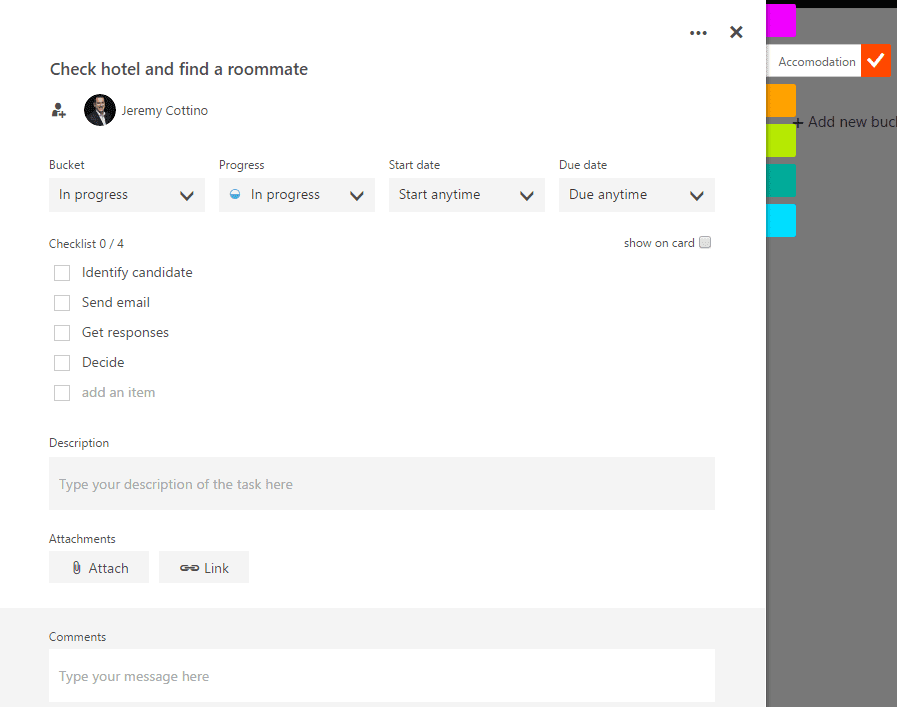
You can:
- Update the task name;
- Assign the task to someone;
- Move the task to any existing buckets;
- Change the Progress status (Not started, In progress or Completed);
- Define a “Start date” and a “Due date”;
- Add a checklist (very useful to track actions) and then promote an item from the checklist to a task;
- Type a description, which can be displayed on the Plan Board card (via the check box);
- Attach or link documents (you can browse the related Groups site or upload a new file);
- Put comments into a discussion feed; and
- Assign the task to one or more categories you have self-defined.
When you “Close,” your changes will be auto-saved and your plan board will be updated with the new information, displaying document previews, lists, status and assignments.

You may have noticed on the screen above that the task “Install mvpsummit2016 mobile application” is late; the bright red highlighted date represents the original due date.
For tasks to be executed, of course, someone is required to carry them out. Each task can be assigned to one (AND ONLY ONE) member of the plan. On the previous task detail page, you may have noticed that the task can be assigned to somebody. A simple way to do this is to drag and drop a member from the top right corner onto the task card.

When tasks have been assigned, you can click on team members to highlight their assignments.

Nieve’s tasks.

Jeremy’s tasks.
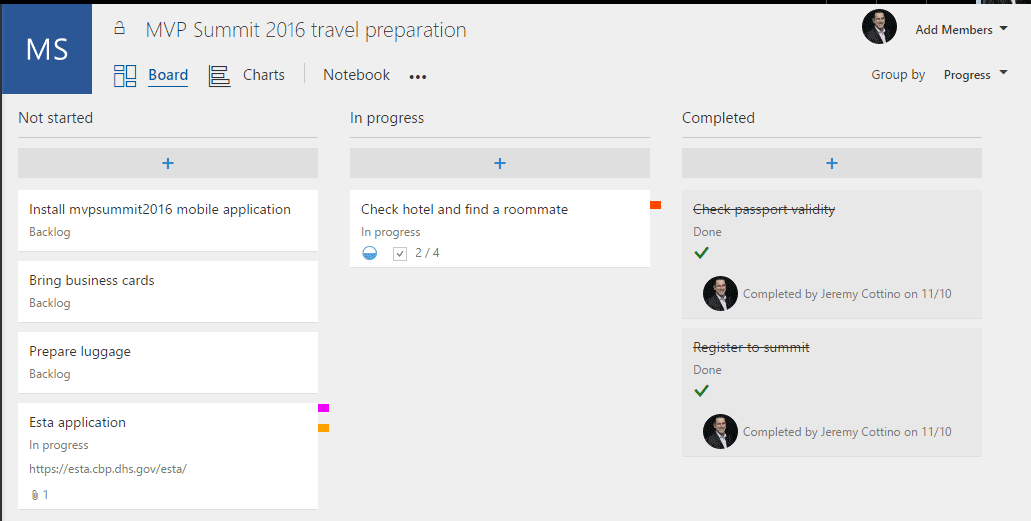
Now let’s dive into some of the great features of Planner. First, let’s play with the plan board “Group By” views. By default, tasks are displayed inside their bucket. You can also choose to group tasks by “Assigned to” (1 bucket per member)…

…or by Progress status (Not started, In progress or Completed):
The Charts view gives a graphical representation of your tasks by Status (color coded) and Assignment. The list of tasks still open is in the right pane.

Knowing that the save is automatic, if you check a task on the right list and mark it as Completed, the charts are automatically refreshed.
Because Planner has been linked to Office 365 Groups, interesting collaboration features are available from the ellipsis on the top menu, including these:
- Conversations, for discussing topics with other team members and adding comments to tasks;
- Notebook, for working with a shared OneNote notebook for each plan;
- A shared calendar, for sharing various events date (whether they’re project-related or not);
- A repository of members or contacts who work on the plan, along with their contact information; and
- A document library for sharing documents using Groups features (document metadata, versioning, check-in/check-out, workflow, etc.).

You can learn more about Office 365 groups in this introductory video from Microsoft.
In addition to the Office 365 Groups “Conversations” feature, Planner logs all discussions around tasks and generates a comment when someone creates a task or marks it as complete. Discussions and de facto tasks comments can be followed up through or updated in Outlook also.

Conversations in Outlook.

Conversations in the task detail pop-up.
You may also have noticed the link to “My tasks” on the left menu.

When you click on this link to access the My tasks page, tasks assigned to you are displayed grouped by Progress status. You can change this view to a plan view (which I find less interesting).
Finally, to keep you updated with the latest information, Planner comes with a “Notifications” feature you can access from the top right icon. This gives you updates on task assignments, new discussions, likes and emails. And, of course, you can also receive an email for each notification.

If you’re a developer, Planner is also part of the Office 365 Graph API, which you can learn more about on this MSDN page.
What’s next with Planner? Officially, the Office team has offered the following tidbits:
- The possibility for users external to your company to access your plans;
- Being able to assign a task to several members; and
- Mobile applications for Windows and native Android and iOS.
I’d add a couple of additional items for my personal wish list. For the future, I’d love to track PMO projects in Planner within my Project Online instance and be able to report from my Planner’s plans from within Power BI.
When I saw Planner last year for the first time, I didn’t really think it held much interest for me in managing projects. After all, I’m a Project person. As a seasoned PM, I need to be able to track resources, baseline and costs — which isn’t possible with Planner. Moving ahead (not to say getting older), I’ve identified areas where this product makes sense. Not all your team members are well trained or certified in project management, and they may just need to follow up on their tasks and share progress status. This tool is perfect for that. Likewise, the integration with Office 365 and Groups is just amazing and brings a huge value.
A version of this article first appeared on the Jeremy Cottino blog here.
Have other uses for Office 365 Planner? Share them with the MPUG community in the comments below.
