

Go Search
MPUG Home
Membership
Resources
User Group Chapters
Knowledge Library
About MPUG
MySite


Ask the Experts: What's Going on This Week? 

News Archive
Ask the Teacher: Earned Value Doesn’t Want to Calculate
Setting Recurring Non-working Time in Microsoft Office Project Standard 2007
Back to the Future
Ask the Teacher: Substituting Resources, Plus Changing the Current Date
4 Formulas for EPM Disaster
Ask the Experts: Define Critical
Oracle on Track to Buy Primavera
Ask the Experts: Why Self-Taught with Microsoft Project Isn't Such a Great Idea
Laying the Foundation for Leading a Project Management Office
Mail: Another Perspective on Defining "Critical"
Certification Insider: Creating a Project from an Existing One
A Rational Approach to Padding
Ask the Expert: Accounting for Material Resources
Chapter Spotlight: 3 Questions with London's Dharmesh Patel
Olympian Stephanie Trafton Connects Winning the Gold with Project Management
5 Compelling Reasons to Upgrade to Project 2007: Visual Reports
Ask the Experts: Displaying Availability Exceptions in Resource Usage Sheet
Certification Insider: How Calendars Control Schedules
Chapter Spotlight: 4 Questions with Houston's Vicki Eaker
The 30-second Report
Ask the Expert: Separating Time Completed from Work Completed
Certification Insider: Defining Working Times with Project 2007 Calendars
Columns I'd Like to See in Project
PMI Releases Updates to Four Standards
How to Reduce Your Project Costs
Ask the Expert: Custom Reports in Microsoft Project
The Work Breakdown Structure
The Strategies of Microsoft Project and Project Server
Certification Insider: Ready! Set! Start Creating Tasks!
Track Project Progress with Physical % Complete
Putting Project Portfolio Management to Work in a Bad Economy
Chapter Spotlight: 4 Questions with Twin Cities' Larry Christofaro
11 Reasons You Should Attend the Microsoft Project Conference
The Case of the Broken Task in Microsoft Project
Ask the Expert: Importing Data from Excel into Project
Certification Insider: Arranging Tasks
Ask the Expert: When Scheduling, Start at the Beginning
Chapter Spotlight: 3 Questions with Baltimore-Washington Metro's Gerald Leonard
Ask the Expert: Tips for Getting Project Server Buy-in from Users
Migrating to Microsoft Project Server 2007: Lessons from the Field
How Gantt Chart-Literate Are You?
Develop Your Project Management Skills: Scenes in the Negotiation Play
Ask the Expert: Optimize Microsoft Project Performance
Ask the Expert: Creating a Limited Resource Availability Schedule
Scheduling Master: Finish to Start Successors
How Gantt Chart-Literate Are You: The Puzzler Solution
The Power of Local Resources in Microsoft Project Server
Certification Insider: How To Influence Tasks and Win Friends (in Microsoft Project)
Ask the Experts: When % Complete Won't Calculate
Ask the Experts: Making Interim Plans Work for You
Project Budgeting: Money Changes Everything
Ask the Experts: How Resource Sharing Works in a Master Project
5 Principles of Program Management for the London Olympics
Certification Insider: Resourcing Project Plans
How to Replace Generic Resources with Named Resources
Ask the Experts: Building What-if Slack Time into Your Schedule
Automated Governance for Portfolio Management
Earn Your PMI-SP, Part 1: Explore the Credential
Share the Love! MPUG Community Leader Awards
Creating Microsoft Project Custom Toolbars in 4 Steps
Certification Insider: Assigning Resources in Microsoft Project
Ask the Experts: When Linking Summary Tasks Makes Sense
Earn Your PMI-SP, Part 2: The Application Process and Getting Through the Exam
Working the Numbers: How to Inject Financial Savvy into Project Management
MPUG Thanks Community Leaders in Award Ceremony
Tips and Tricks for Microsoft Project 2007: Creating Useful Custom Views
Ask the Experts: Applying Two Constraints on One Task
Earn Your PMI-SP, Part 3: What You Need to Study
Best Practices for Microsoft Project, Part 1
Best Practices for Microsoft Project, Part 2
Certification Insider: Mastering Duration, Work, and Units
Creating Milestone Reports in Microsoft Project
Ask the Experts: Managing That Schedule with Drop-dead Deadlines
The Project 2010 Interview: Microsoft's Chris Capossela Talks to the Microsoft Project Community
How to Restore an Abandoned Project Schedule
Certification Insider: Modifying Resource Assignments
Why MPUG: Five Perspectives, One Member
The Purpose of Project Charters
Forecasting Schedule Issues with a Deadline Dashboard
Ask the Experts: Printing Notes in a Project
How to Achieve a More Realistic Schedule in Your Project Planning
Is Microsoft Project a Project Management Tool?
The New Year's Resolution of a Project Manager
Certification Insider: Understand Critical Path
Project Programming: Integrating Project Server's Timesheet with an Access Control System
Ask the Experts: What's Going on This Week?
Critical Path 2.0
Certification Insider: Exchanging Data between Programs
ProjecTalk Goes On the Air!
Ask the Experts: Making Sense of Current Activity Reports
Three Rules for a Happy Life with Project 2007
Project Date Numbering
Sign Up for MPUG Chapter Alerts!
MPUG Members: Tell Us What You're Going to Love about Microsoft Project 2010 -- and Get a Free Copy of the Software!
Microsoft Project 2010: Preparing for Launch
Certification Insider: Saving and Modifying Baselines
Ask the Experts: Creating a Report with Task and Resource Data
Microsoft Project 2010 Licensing
Microsoft Project 2010 Upgrade Path
Project Server 2010: Things to Note, and Avoid, as You Start the 2010 Journey
5 Tips for Formatting Text on a Gantt Chart
Microsoft Project 2010 Feature Rally: Sync to SharePoint
Microsoft Project 2010 Feature Rally: Manually Scheduled Tasks
Microsoft Project 2010 Feature Rally: Departmental Fields
Microsoft Project 2010 Feature Rally: Inactive Tasks
Microsoft Project 2010 Feature Rally: Team Planner
Microsoft Project 2010 Feature Rally: Reporting
Microsoft Project 2010 Feature Rally: The Ribbon
Microsoft Project 2010 Feature Rally: Synching with SharePoint
Microsoft Project 2010 Feature Rally: Project Timeline
Microsoft Project 2010 Feature Rally: Integrated Portfolio Management
Microsoft Project 2010 Feature Rally: No More ActiveX!
Microsoft Project 2010 Feature Rally: ROG, the Red Over-allocation Guy
Certification Insider: Making Resource Assignments Realistic
Ask the Experts: Exporting Only Tasks to Excel
The Great Demo! Top 10 List
Microsoft Project View Mastery
EPK Cost Tackles Cost Management for Microsoft Project Server
Lock Down Microsoft Project Progress Data
Certification Insider: Resource Overallocations
Don't Touch That Dial! What to Do Before Using Microsoft Project
Ask the Experts: Managing a Large Number of Resources
10 Easy Ways to Earn PDUs
The Awful Demo: Top 10 List of What NOT to Do
How to Get Certified in Microsoft Project 2010
Microsoft Project 2010 Certification FAQ


Roger from New York asks: Has anyone ever written a process/macro/view/something whereby I can produce a timesheet of sorts that tells my resources what tasks they're to work on this week, possibly using the Gantt view?

Answer: This is something that many people have asked me about, and there are several solutions available depending on what you're looking for.

If you want a Gantt chart view, you could try applying the filter, "Using Resource," which would show only tasks where a specific resource is being used. Keep in mind that you'll have to run this separately for each resource. If you wanted to take this to the next level and group the work by week, this would give you a clearer idea of how the work is distributed for each resource.

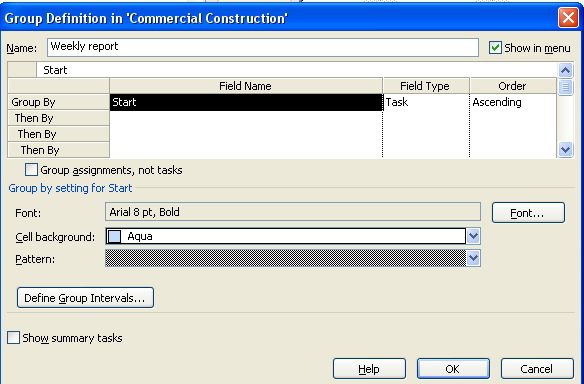
To create a grouping by week, follow these steps.

1. Project | Group by | More Groups.
2. Click on "New."
3. Enter a title for the report, such as "Weekly report."
4. To base the report on start date, select Start in the Group by field (or the grouping may be created using the Finish date by selecting Finish).
5. Click off the choice above and then click back onto it.
6. The button "Define Group Intervals" becomes available. Click on it.
7. Select in the Group on field your grouping time choice -- week, month, etc.
8. The Group interval should be 1 if you would like every week.
9. Click OK and then OK to close the form.

Figure 1. How definition of the weekly report might look.
Lehnert Figure 1

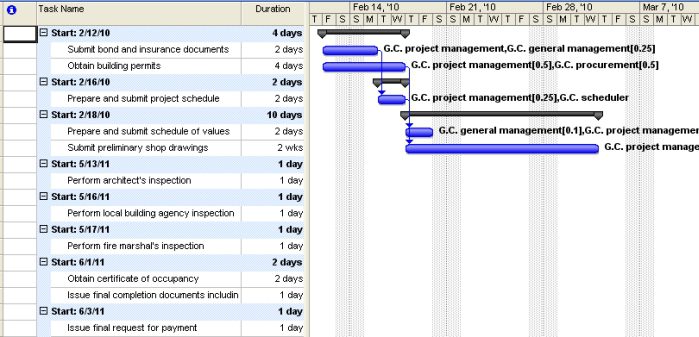
Figure 2 shows the resulting report when run for the G.C. project management resource.

Figure 2. The report generated.
Lehnert Figure 2

You could also take this one step further and create a custom view to make it easier to repeat the query.

1. View | More Views | New.
2. Create a single view and click OK.
3. Enter a view name (such as "Weekly tasks by resource"), as shown in Figure 3.
4. For Screen, choose Gantt Chart.
5. For Table choose Entry or any table you would like created.
6. For Group, choose Weekly report (or whatever you've named in the previous set of steps).
7. For Filter, choose Using Resource.
8. Click Show in the menu to make the view accessible from the View menu.
9. Click OK.

Figure 3. Where to set up the Group Definition.

Lehnert Figure 3

Note: If this is something that you'd like to use repeatedly, copy all the objects you created through the Tools | Organizer into the Global.MPT.

If you're looking for more detail, such as showing the number of hours a resource is assigned per week or day, I recommend using the Resource Usage view. Another benefit of this method is that the project manager could use this view to create a standardized process that would be a method of issuing work and getting back actual values. The resource will know the work they're assigned to, and they could write down how much work they did and when they did it and indicate which tasks are completed and if they need more time or additional work hours.

The existing Resource Usage view shows the resources and the tasks that are assigned. When print preview is requested, all resources are printed. I would recommend that you create a copy of the Resource Usage view so you can make a few changes and retain them:

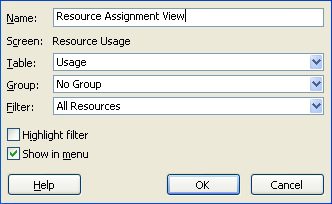
1. Go to View | More Views | Resource Usage | Copy.
2. Enter a name for the view, such as Resource Assignment View (see Figure 4).
3. For Table, choose any resource table.
4. For Group, choose No Group.
5. For Filter, choose All Resources.
6. Click OK.

Figure 4. Setting up the Resource Usage view.
Lehnert Figure 4

7. Apply the Resource Assignment View -- View | Resource Assignment View.
8. Click on each resource name and then click on Insert | Page Break. Repeat for each resource.
9. On the right side of the view the "Work" column should be available. Right click on the right side and click on Actual Work to add this column to the view.
10. Adjust your timescale to be per week, per day, or per month.
11. Click on Print Preview. Each resource should be on a separate page.
12. The print option will allow for printing of a date range to limit timeframe of tasks printed.

By default, Project doesn't configure headers or footers. But I recommend going into File | Print Setup and configuring each project to add the project name to the header and the date to the header or footer.

I should also note that I haven't figured out a way to print the individual resource reports to a file vs. paper unless the report for each resource is run one at a time.


 Email your question for our experts to editor@mpug.com.

Columnist Ellen Lehnert


With over 20 years of corporate training experience, Ellen Lehnert, PMP, MCT, MCITP, is a specialist in Microsoft Project and Microsoft Project Server. She contributes to many reference books and holds multiple Microsoft Project certifications. Ellen brings a unique combination of licensed teacher and programming background to the classes she teaches as well as process development, installations, and consulting. Contact her at ellen@lehnertcs.com or at LehnertCS.


© Copyright 1997-2010 MPUG.com. All Rights Reserved. Privacy Policy - Contact Us